How to Create a Website Without Coding: A Step-by-Step Guide
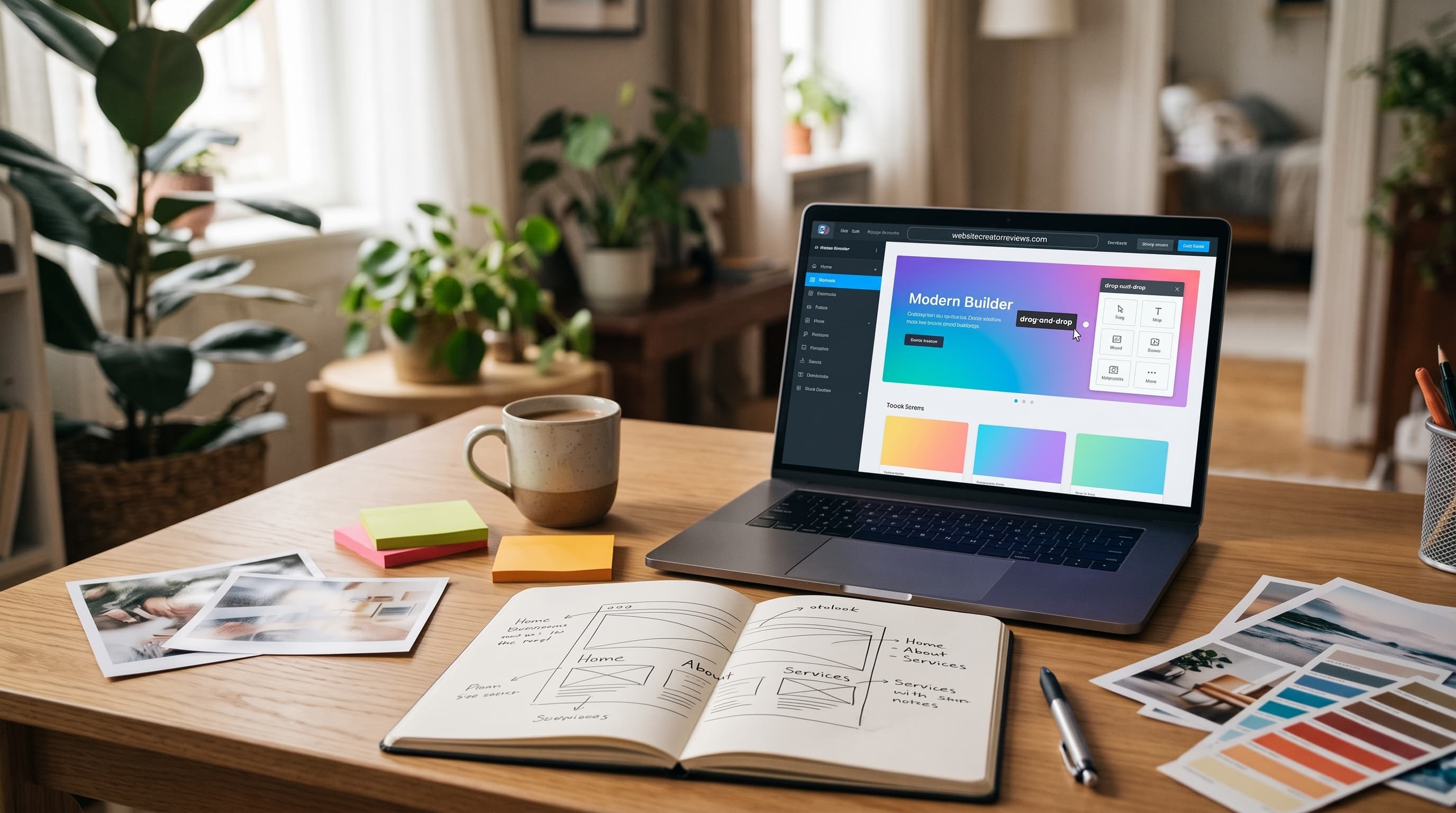
You don't need to know how to code to launch a real website today — modern builders handle hosting, security, and responsive layouts for you. What still matters is preparation: a clear goal, good content, and a few hours of focused work.
Before you start: plan the site
Spend twenty minutes answering these questions on paper:
- What should visitors do? Call you, book an appointment, buy a product, read articles, or view your work.
- Who are they? Local customers, clients in your industry, or readers interested in a topic.
- Which pages do you need? Most small sites need a homepage, about page, services or products, and a contact page.
A clear plan prevents the most common problem with first websites: lots of pages without a clear purpose.
Prepare your content first
Builders move quickly once content is ready, and slowly when you write as you go. Collect:
- your logo and brand colors, if you have them;
- short descriptions of each service or product;
- real photos of your work, products, team, or premises;
- contact details, opening hours, and location;
- two or three customer testimonials, with permission.
Choosing the right tool
The right builder depends on your goal — see our full rating to compare options, or jump straight to our Best Website Builder for Beginners list.
As a rule of thumb: Wix suits beginners who want freedom, Squarespace suits those who want a polished result with guard-rails, Shopify suits online stores, and Carrd suits a single focused page.
Following the steps below
The general process is the same across most builders: pick a template, customize your content, add any extra features you need, and publish. Follow the numbered steps for a concrete walkthrough.
Design tips for non-designers
- Use two fonts at most — one for headings, one for body text.
- Limit your palette to one or two brand colors plus neutral tones.
- Leave white space; crowded pages look less professional.
- Keep headlines short and specific, describing what you offer rather than slogans.
- Put one clear call to action on each page, such as "Book a consultation".
Basic SEO for your first site
Give every page a unique title and description that mention what you do and, for local businesses, where. Use descriptive headings, add alt text to images, and connect your domain. Then submit the site to Google Search Console so you can see how people find it.
Before you publish
- Preview every page on desktop and on a real phone.
- Click every link and button.
- Send yourself a message through the contact form.
- Check spelling, phone numbers, and opening hours.
- Connect your custom domain and confirm the secure padlock appears in the browser.
Example: a first site for a local yoga studio
To make the process concrete, here is how a small yoga studio might approach it. The goal is simple: get people to book a first class. The site needs five pages — Home, Classes and Schedule, Teachers, Prices, and Contact.
The owner collects photos of the studio and teachers, writes a two-line description for each class type, and lists prices for single classes and passes. A builder with a booking app, such as Wix or Squarespace, lets visitors reserve a class directly from the schedule page. The homepage headline says exactly what the studio offers and where — "Small-group yoga classes in central Riverside" — with a "Book your first class" button right below.
With content prepared, building the site takes a single weekend. Most of the time goes into choosing photos and refining text, not into technical work.
Frequently asked questions
How long does it take to build a first website? A simple five-page site usually takes one to three days of focused work once the content is ready. Preparing text and photos often takes longer than building the pages.
How much does it cost? Expect to pay for a builder plan and a domain each year. Extras such as booking tools, a store, or email marketing add to the total, so check what your chosen plan includes.
Can I change builders later? You can, but it usually means rebuilding the design and moving content by hand. Choosing a platform that fits your next two or three years saves time.
After launch
A website is never truly finished. Review it every few months: update prices and services, add new photos and testimonials, and check which pages visitors use most in your analytics.
- 1Choose a beginner-friendly builder
Pick a platform with a guided, drag-and-drop editor — see our Best Website Builder for Beginners list for our top picks.
- 2Start from a template
Choose a template close to what you need rather than starting from a blank page.
- 3Replace the placeholder content
Swap in your own text, images, and branding section by section.
- 4Add any extra features
Enable a contact form, booking tool, or simple store if your site needs one.
- 5Publish and connect a domain
Preview your site, connect a custom domain, and publish it live.